The Template Editor Now Shows the Email Your Customers Get
The euromail template editor renders your email the way a send does, with sample data, a phone-width view, checks for common mistakes, a test send to yourself, and a record of which version every email used.
Until now, editing a template in euromail meant editing HTML in a text box and hoping. The preview showed the raw markup, variables stayed as {{ first_name }}, and the only way to see the real thing was to send it from your own code. I rebuilt the editor over the last two weeks so that what you see while editing is what lands in the inbox.
A preview that renders the real email#
The preview now renders the template the same way a send does. Your HTML runs in its own frame, so its styles can't leak into the dashboard and any scripts in it never run, just like in a mail client.
Variables are filled from sample data you keep with the template. It is a small piece of JSON in the same shape you pass when sending, such as a first name, an order number and a tracking link. If the template uses a variable you have no sample value for, the preview shows it as [delivery_date], so you can see where it lands instead of finding a blank gap.
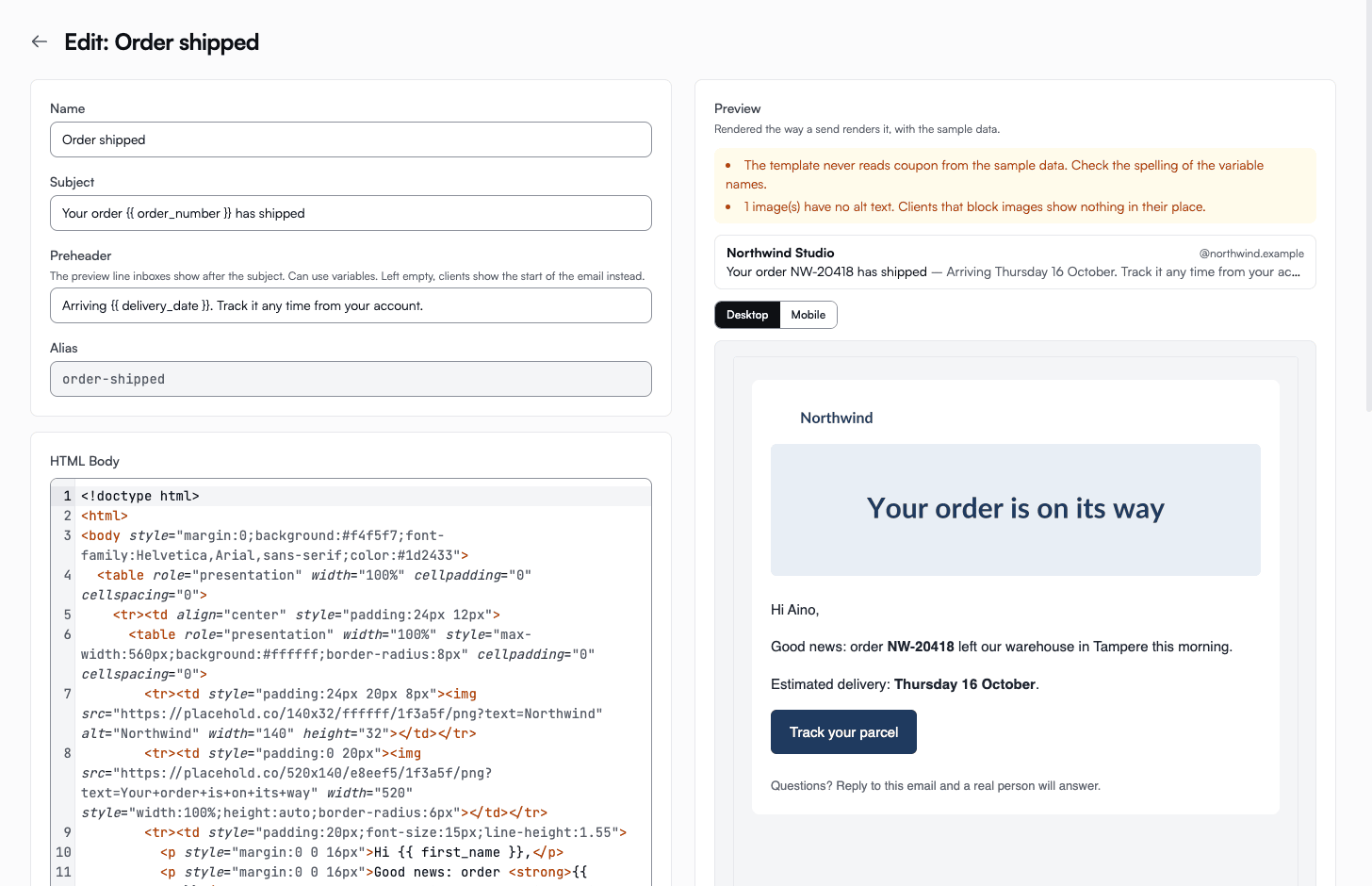
The HTML box is a proper code editor now, with syntax highlighting and line numbers. If you try to leave the page with unsaved edits, the editor asks before throwing them away. Undo your change and it stops asking.
Remote images, such as a logo on your CDN, load in the preview by default. Loading them tells the image host your IP address, so there is a box to turn them off, and your browser remembers the choice.
Check it on a phone#
A lot of order and password mail gets read on a phone. A Desktop and Mobile switch above the preview lays the email out at about 600 pixels, the usual width in desktop mail clients, or at 375 pixels, the width of a typical phone screen. You see the button that wraps onto two lines, or the table that runs off the edge, before your customers do.
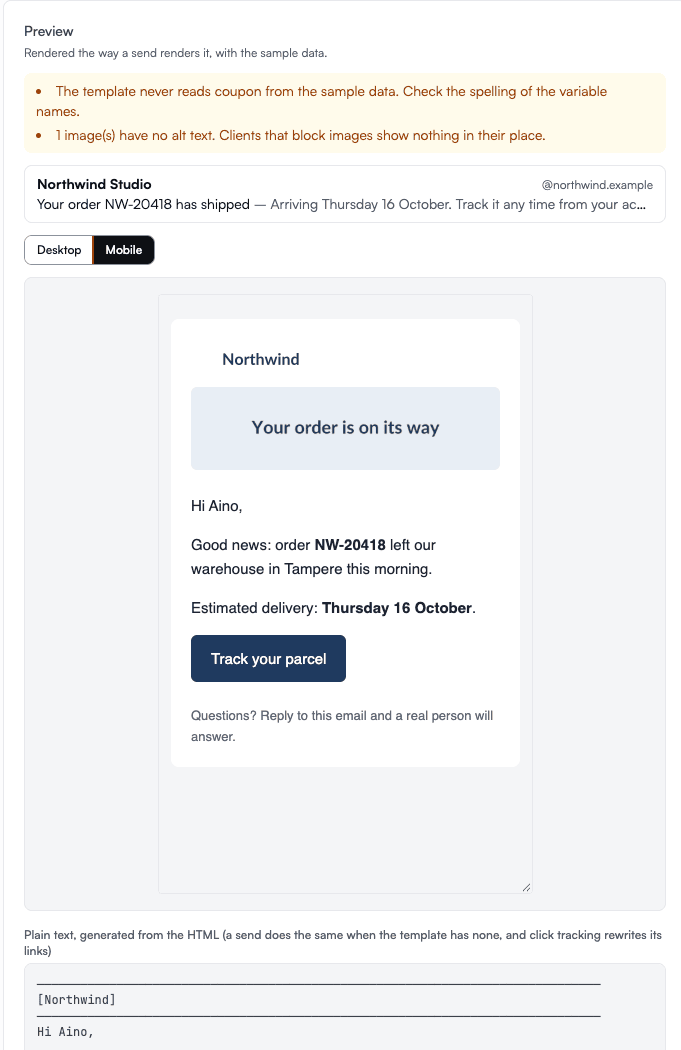
Below the preview is the plain-text version of the email. If your template has no text part of its own, euromail generates one from the HTML. Sends always did this. Now you can read that text before it goes out.
Checks for the mistakes people actually make#
Above the preview, a short list flags problems a recipient would notice:
- an image with no alt text, which leaves an empty space when the mail client blocks images
- a link with no destination
- a variable the template uses that has no sample value, which would render as empty text in a real send without that value
- a sample value the template never reads, usually a typo in a variable name
- HTML over 102 KB, the size at which Gmail cuts the message off and hides the rest behind a link
None of them stops you from saving or sending. They're warnings, and you decide what to do about them.
The inbox row#
Right under the checks is a one-line mock of how the email will sit in an inbox: your name, the subject, and the grey preview line after it. That line is the preheader, and you can now set it on the template, variables included. Leave it empty and mail clients show the first words of the email instead, which is often "View in browser" or the alt text of your logo. The mock shows you which one you'll get.
Send a test, then send it for real#
"Send test to me" sends the saved template, filled with your sample data, to your own address. It goes through the normal sending path, so what arrives is what a customer would get. You can send up to ten tests an hour.
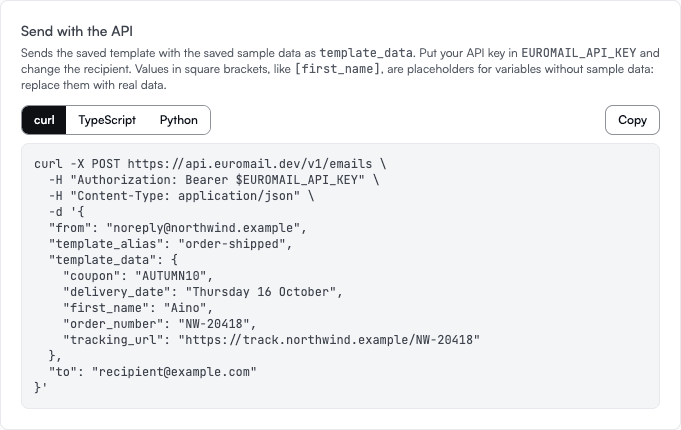
When the template is ready, the editor shows the API request that sends it, in curl, TypeScript or Python. The request already has the template and your sample data in it. Copy it, put in your API key and a real recipient, and you have a working send.
Know which version went out#
Every save keeps a version, and now every email remembers which version it was rendered from. The email's page in the dashboard names the template and the version, and when that version is no longer the live one, a link takes you to what changed since.
You can compare any saved version with the live one in one click. Removed lines show in red, added lines in green, and long stretches that didn't change are folded away.
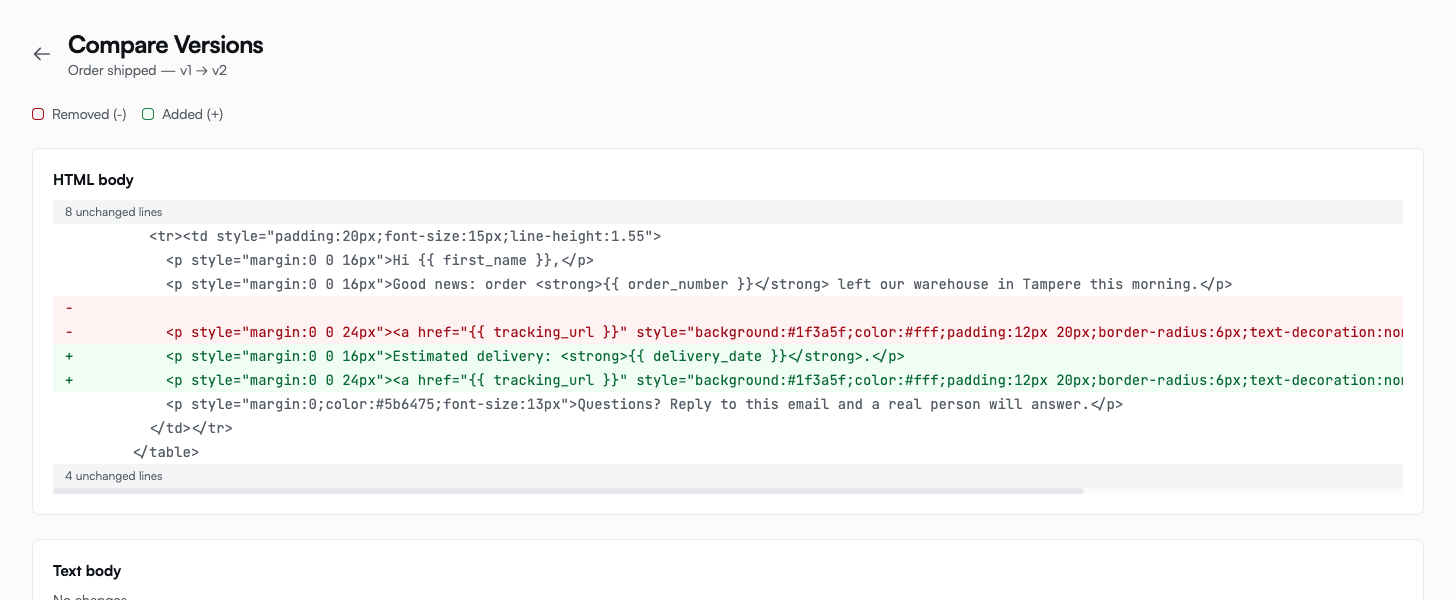
So when a customer forwards an odd-looking email and asks what happened, you can see the template exactly as it was when that email went out.
The template guide covers variables, conditionals and loops, and how to manage templates through the API.
Start sending GDPR-compliant email today
Create a free account and send your first email in minutes. Email storage and AI processing in Finland, with a DPA on every plan.